Welcome to Microsoft's Windows Vista Beta Install guide step
by step on a used hard drive. This will give you an idea on how to do this
when and if the time arises for you to either reinstall the operating
system, install for the first time or upgrade your present operating system.
This install guide is fully graphical and will take you through each step of
the installation.
What you will require to do this walkthrough is
-
A Windows Vista CD or DVD
-
A Computer with CD-ROM or DVD-ROM access
-
Bios set to boot of the CD/DVD-ROM drive.
To start this Windows install insert the first CD or the DVD
into the drive and start or restart your computer
Remember to backup all important information before
performing this task.
As there is still an operating system on the drive, the
following menu will appear. Press any key to boot off the CD/DVD.

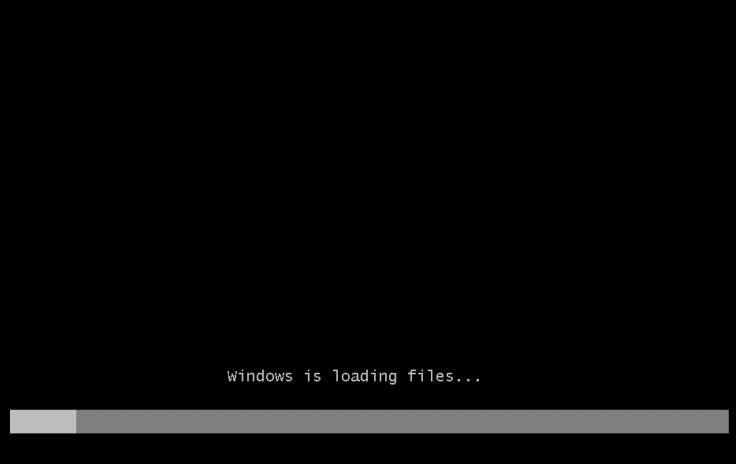
Windows will now load files, this may take some time so
be patient.
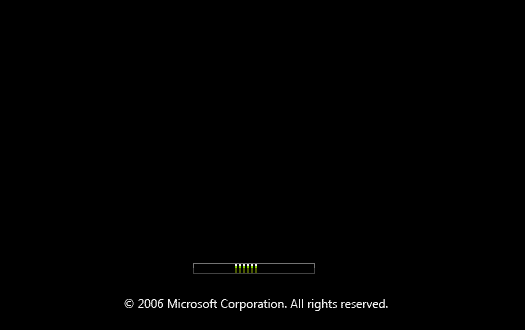
Next the windows vista load screen (Codenamed Longhorn)
Your mouse should now be active, click on install
now.
The installation will begin.
You will now be informed of how easy it is to install
Windows, click next to continue.
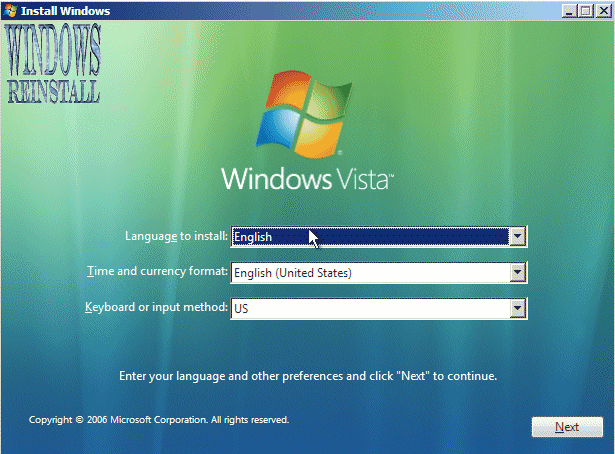
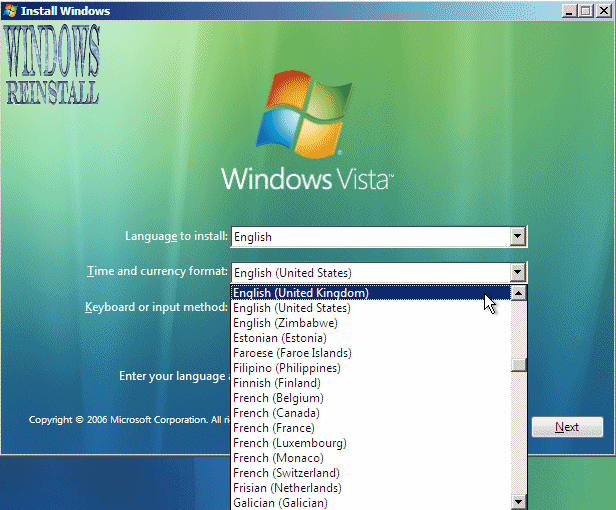
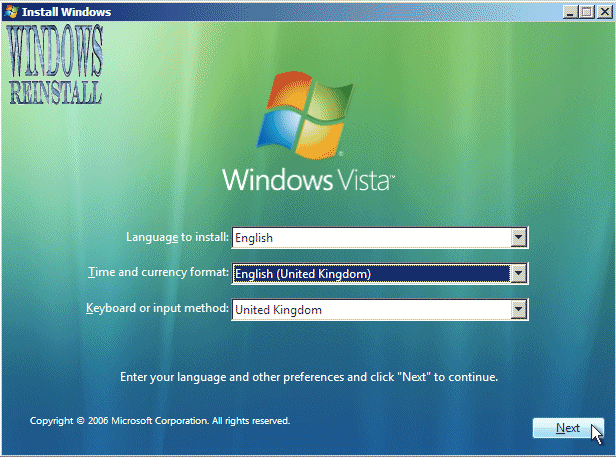
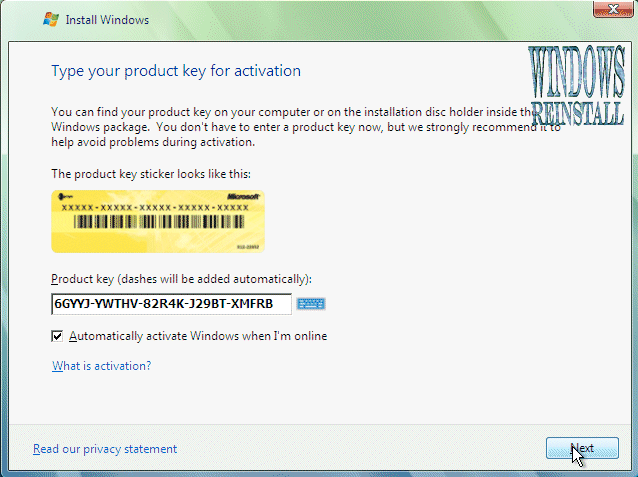
Now on your CD/DVD, your Windows manual or on your
computer will be the Windows product key, find it and input it into the
box below "Product Key". Now select or deselect the "Automatic
Activation" check box. Click next to continue.
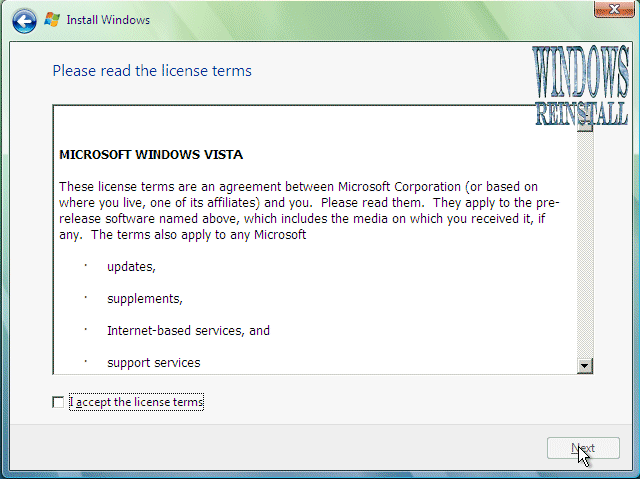
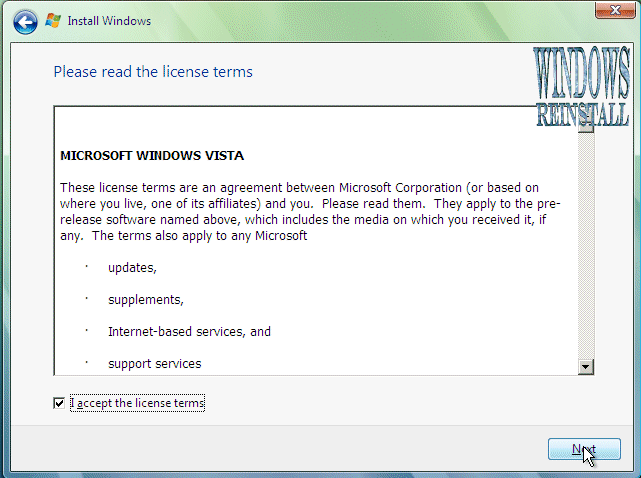
Now the license agreement will appear, read and if you
agree with the terms click next.

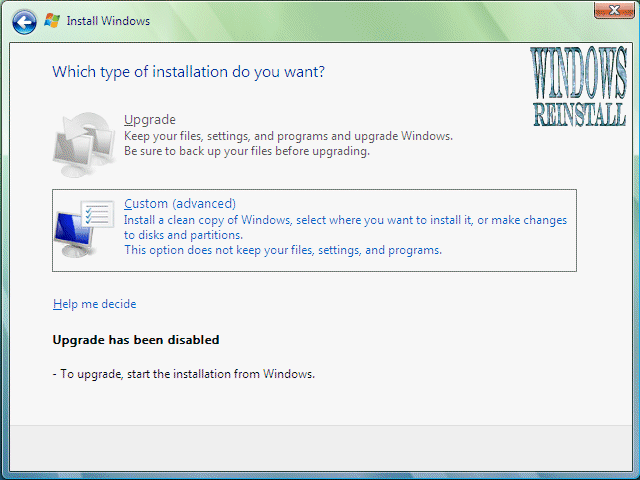
Now select "Custom". (You may only upgrade if you started
install in Windows.)
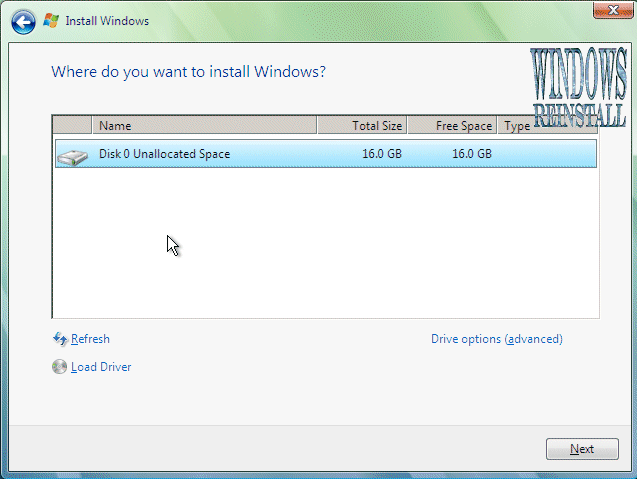
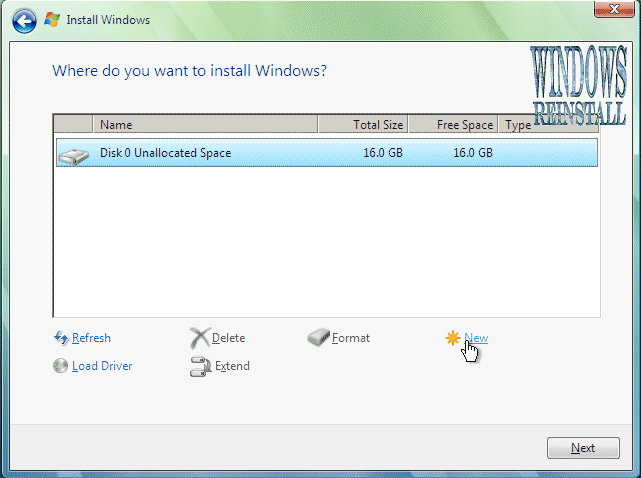
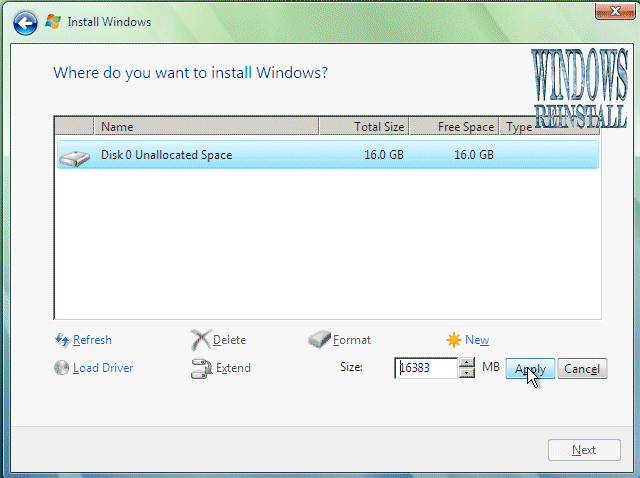
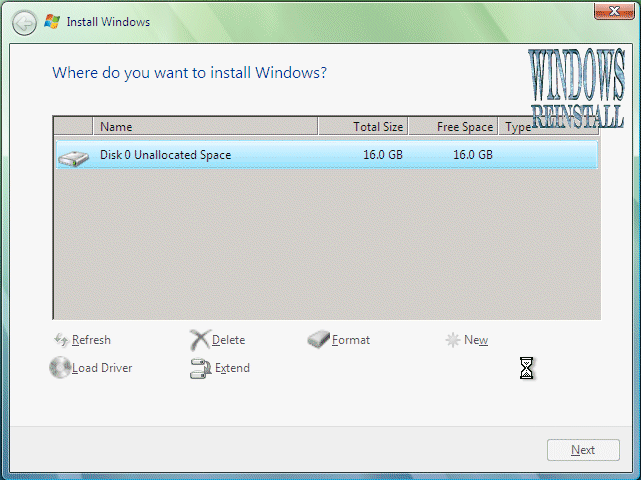
Now select the partition you want to install windows
into....
....and select format to clear the drive.
You will be warned that this will permanently delete the
contents of the hard drive, click next to continue.
The partition should already be selected, if not select
it and click "Next" to continue
Now you may get network name for your Vista install,
input the name you wish in the box and click next.
Now Windows will install, this may take some time so be
patient.
Once installed you will get the login screen. Log in..
and welcome to Windows Vista.
THE
END